Capture
Take a photo yourself or use automatic capture. Let Scanvaro help find the edges, then adjust them if needed.
One page or a whole document Scanvaro
An iPhone document scanner
Documents, receipts, manuals. Capture several pages, refine the image and save a PDF or JPG. Keep the settings you use most in your own category.
iPhone · iOS 26+ · no Scanvaro account
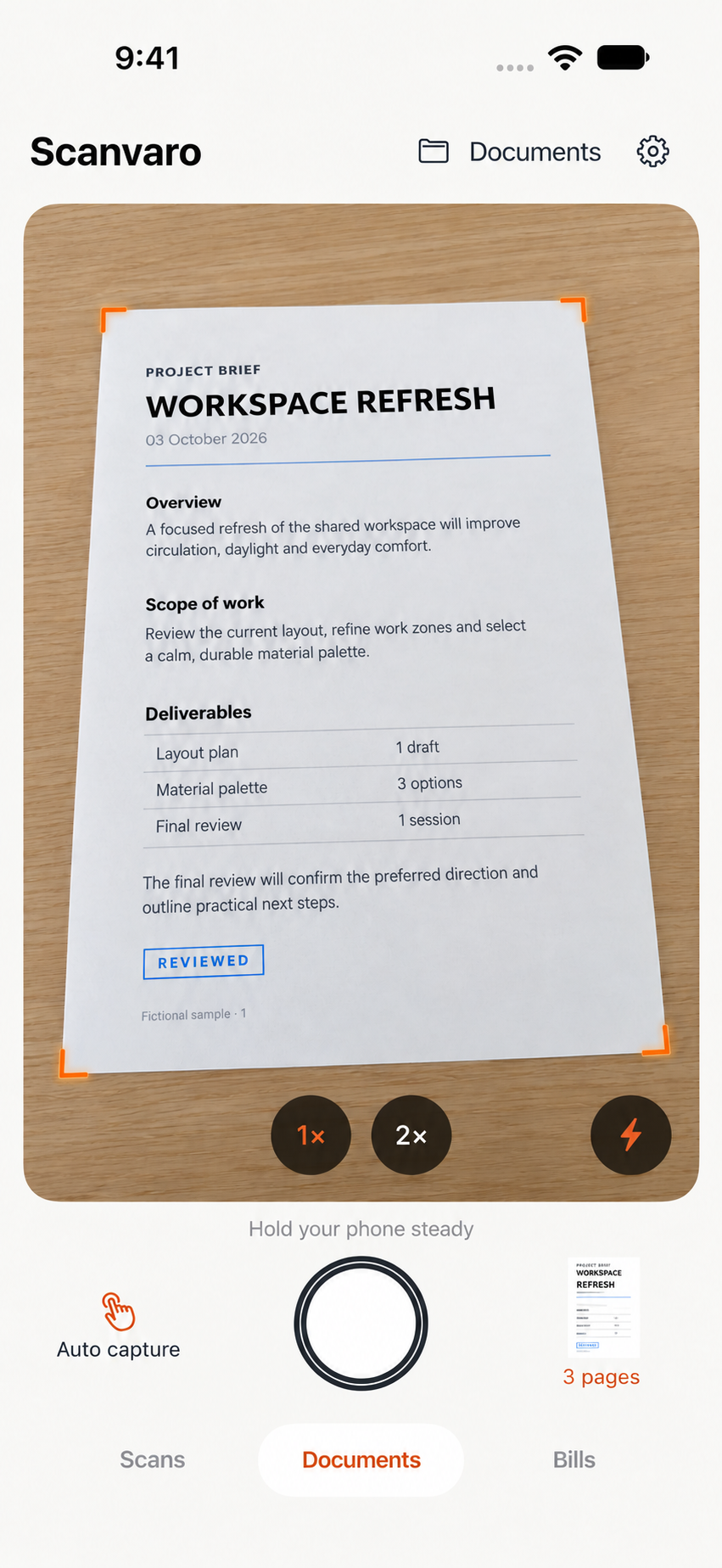
Process illustration with a sample document.
Less repetition
Take a photo yourself or use automatic capture. Let Scanvaro help find the edges, then adjust them if needed.
One page or a whole documentOriginal, Document, Grayscale or B&W. Adjust exposure, contrast, saturation and sharpness, or try auto enhancement. Zoom in on text and hold to compare with the cropped original.
Your original stays with youSave PDF or JPG to a chosen Files folder, including iCloud Drive. Export JPG pages to a chosen Photos album. You control the name, format and quality.
Or set it aside and finish laterSet it up once
Choose processing and sharpness, visible zoom stops and a default zoom, edge detection and a save destination. Reorder categories and pick the one to start with.
A few ways you could set it up
2× · Document · Files
1× · Gray · Photos
1× · Original · Files
Available zoom options depend on your iPhone.
Beyond the shutter
Grid, thumbnail rows or a plain list. Search, combine category filters and sort by date or name. Pinch the grid between two and five columns.
Swipe between pages, reorder thumbnails, add a page or retake the selected one. Deleted pages stay recoverable while you work on the document.
Separate archives for documents and settings. See progress, cancel before changes are committed, then restore documents by replacing the library or keeping both versions.
Open Scanvaro from a Lock Screen widget, Control Center, or an Action button shortcut on supported iPhones. Your open document is preserved.
Create filename templates with a name, date and date parts. Insert tokens where the cursor is, copy a built-in template and keep your own versions.
Check library size and choose an optional cleanup limit. It never blocks a new scan; cleanup protects unfinished work and checks eligible exported copies. Document Trash keeps items for 30 days by default.
Built with your feedback
Scan, edit, manage categories and export PDF or JPG for free. No in-app purchases.
Capture, processing and the library work on your device. Originals stay separate from edits. Exports and manual backups go to the destination you choose.
Report a bug, suggest an idea or correct a translation. Add selected photos and files, preview your message, and choose whether to include technical details and an action log.
Choose your language
English, Russian, Spanish, Brazilian Portuguese, German, French, Italian, Japanese, Korean and Simplified Chinese. Choose the app language in iOS Settings; your document text and custom names stay as you wrote them.
Available now
Scanvaro is available on the App Store. Capture documents, refine each page and save PDF or JPG to your chosen destination.
Download on the App StoreiPhone · iOS 26 or later · Free · No in-app purchases
Before your first scan
Not for capture and processing. Saving to a cloud folder, sending a message and downloading updates depend on access to those services.
The color Document preset helps brighten paper while preserving colored details. Results depend on lighting and the original photo. Check the result in the editor.
Save PDF, JPG or a manual backup to iCloud Drive through Files. Automatic synchronization of the Scanvaro library across devices is not available yet.
Open Settings → Contact & feedback and choose Send message. The recipient address is support@scanvaro.com. Add selected files, preview the message and separately choose whether to attach an action log. See Support for details.
Scans are processed locally. Scanvaro has no advertising or analytics SDK, or automatic crash-report uploads. Basic technical details are enabled in the feedback form by default and can be switched off. An action log is attached only when separately selected for that message; scans are never added automatically. See Privacy for details.
Settings → Backups creates separate .scanvarobackup document archives and .scanvarosettings settings archives. A PDF is an export, not an editable backup. See Support for validation, restoration choices and older formats.
Scanvaro and this website support ten interface languages. Use Settings → App language to open the iOS language settings.